
Credit Line Requests Guide
This guide explains how to manage credit line requests in the Envia Admin platform, from initial review through DocuSign contract creation and signing.
Access
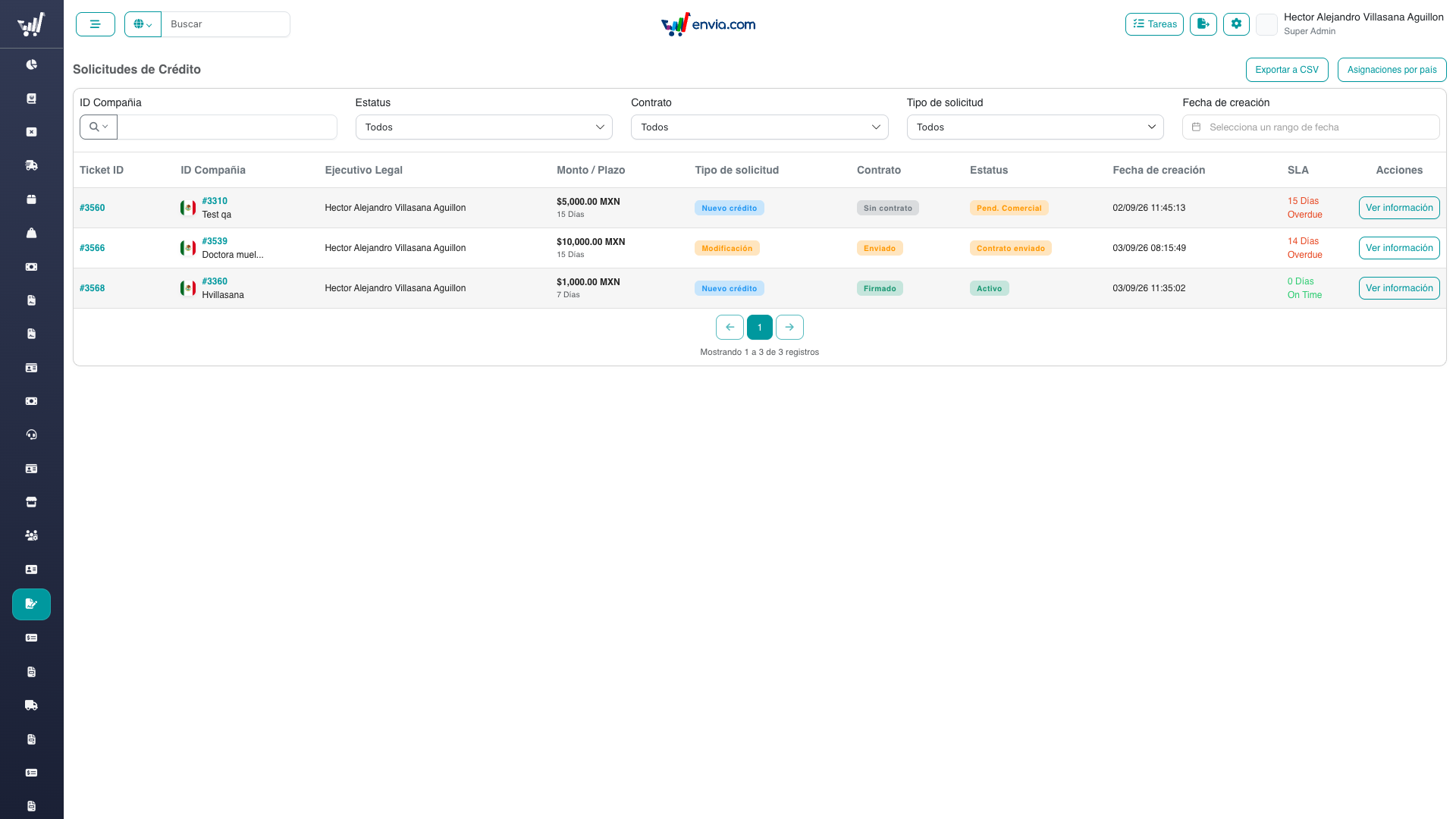
Navigate to Contabilidad → Solicitudes de Crédito.
You need the credit-line-requests permission to view requests, and credit-line-requests-manage to update request details, upload files, and (note countries) upload the note format.
To approve/reject documents and validate the signed note, you need the credit-line-requests-review-documents permission.
To create DocuSign contracts, you additionally need the credit-line-requests-create-docusign-contract permission.
To configure Country assignments (who is tagged in Slack and who may commercially / finance-approve by country), you need manage-credit-line-country-assignments. That control appears on the credit-line requests listing next to Export CSV.
Workflow Overview
Client submits credit ticket
         ↓
    Request created automatically (pending_commercial)
    Slack `creditTicketCreated` (title/intro differ for new vs modification)
         ↓
    Commercial team reviews → Approve or Reject
         ↓
    [pending_finance] Finance team authorizes (or Reject)
         ↓
    [document_review] Documents reviewed by legal team
         ↓
    All documents approved
    (note countries, new credit: promissory note, then note_validated)
         ↓
    Flag credit_line_pending_apply ON:
      Legal approves (no envelope yet)
      [pending_management] Allowlisted operator authorizes the DocuSign contract
    Flag OFF:
      Legal creates the DocuSign contract
         ↓
    [contract_sent]
         ↓
    Both parties sign in DocuSign
         ↓
    Webhook applies first credit line (CR) → status active
         ↓
    [active] (or legal_review if CR cannot be applied automatically)
Note countries (Mexico)
The promissory note step applies only to new credit in countries with a configured note form (currently Mexico). It happens during document review, before legal approval or contract creation. Modifications skip the note entirely: once all documents are approved, the next step is Approve when the management flag is on, or Create Contract when it is off.
If a document is rejected during legal review, the request moves to document_rejected and the client is asked to re-upload it. The client resubmit returns the request to document_review (the document stays pending until legal re-approves it). Once all required documents are approved again, the note, Approve, or Create Contract actions reappear.
Automatic expiration of pending requests
Requests that remain in pending_commercial for more than 30 days are automatically rejected by a daily system job (runs at 06:00 UTC). The linked ticket is set to Declined and a localized message is inserted as a visible comment. The rejected_by field is set to the system user (0) so these can be distinguished from manual rejections. If the client wishes to restart the process, a new credit line request must be submitted.
Reviewing a Request
- Open Contabilidad → Solicitudes de Crédito
- Use the filters to find requests by status, company, contract status, request type (new credit vs modification), or date range
- Click Ver info on any row to open the detail panel
The detail panel shows:
- The ticket on the right (with full ticket history)
- Request info on the left: request type badge (new credit vs modification) first, then requester, amounts, and status
- The document checklist below
SLA Indicator
The SLA column shows how many days have elapsed since the request was created:
- Green: On time
- Yellow: Delayed
- Red: Overdue
Approving or Rejecting a Request
In the detail panel, under Request Info:
Commercial approval
- Review the requested amount and term
- If approving: set the approved amount, approved days, and a credit line type, then approve → status becomes
pending_finance(resolved_by/resolved_atrecord the commercial approver). Your login email must be a commercial assignment for the company country (or the commercial global fallback if that country has no row).credit-line-requests-managealone is not enough in production. - If rejecting: select
rejectedand provide a mandatory rejection reason (rejected_by/rejected_at)
On a new credit, the pencil saves each field immediately (PATCH /details). On a modification, there is still one row per field with a pencil, but values stay in the UI until commercial approve (then approved_* are written). Approving a modification also copies the KYC/KYB variable map from a prior request. If amount, days, and billing cycle all match the company's current line, approval is blocked until at least one value changes.
Finance approval
When the request is in pending_finance, finance authorizes or rejects.
- Reject →
rejectedwith a reason. - Authorize, flag on or off →
document_review(finance_approved_by/finance_approved_at) and Slack notifies the legal executive on the ticket. Finance does not park the request.
The user must have credit-line-requests-manage (same as commercial approve). On top of that, authorization depends on approved_days:
| Condition | Rule |
|---|---|
approved_days ≥ 45 | User must have permission approve-long-credit-line. Country finance assignment is not checked. |
approved_days < 45 | Admin login email (users.email) must be a finance assignment for the company country (or the global finance fallback). approve-long-credit-line is not required. |
If the UI shows a long-credit warning, the user is missing approve-long-credit-line for a ≥ 45-day request.
Finance reviewers (and Slack tags) come from Credit line country assignments (credit_finance scope, plus the global finance fallback). Non-productive environments still redirect authorization checks to the localhost test reviewer.
Legal approval
This step exists only while the flag credit_line_pending_apply is active, and only when the request is ready for a contract (document_review or note_validated, documents approved, note validated when required).
Open Ver info. Approve replaces Create Contract when the detail says you may approve as legal (can_approve_legal). That requires permission credit-line-requests-create-docusign-contract.
- Confirm Approve. The contract is not created yet.
- Status becomes
pending_management. Your user is stored as the DocuSign contract creator. Slack on the credit-line channel tells the allowlisted approvers that legal approved and management is next.
With the flag off, this button is not shown. Create Contract remains.
Management authorization
This step is for requests legal parked in pending_management.
The listing badge is Pendiente autorización Gerencia (warning). Filter the status column with that option to find them.
Open Ver info. Authorize and Reject appear in the top action bar only when the detail says you may act (can_authorize_management). That is true when your login email is in rules.approvers on the flag. There is no separate permission and no country assignment for this step. A request already parked stays actionable after the flag is turned off, as long as your email remains on the list.
- Authorize confirms that the DocuSign contract will be created. The credit line is not applied here. Status becomes
contract_sent. The legal user stays the contract creator. A request parked before this legal step has no creator yet, so authorize stores the operator who authorizes.management_approved_by/management_approved_atare saved only after the envelope exists. If DocuSign fails, the request stays inpending_management. A second authorize does not create another envelope while the first one is still being created. - Reject requires a reason. Status becomes
rejected, the ticket is declined, and the company credit line does not change.
Documents stay locked while the request is in pending_management.
TIP
After commercial approval, Slack notifies the finance reviewers for that country. Legal is notified after finance approval. When the flag is on, the credit-line channel is notified again after legal approval, for management. In those messages the header and intro distinguish new credit (Credit line request #…) from a modification (Credit line modification #…); field blocks stay the same.
WARNING
Rejecting a request sends a notification to the client. Make sure the rejection reason is clear and professional.
Creating a request from the client screen
On the legacy client detail, Crear solicitud in the credit modal follows the same flag.
- Enter limit, days, and credit type.
- The modal calls
GET /credit-line-requests/admin-create-gate(client-bill-config). - Flag on: confirm Se creará una solicitud de crédito para esta empresa. Accept posts
POST /credit-line-requests/from-companyand opens/credit-line-requests?ticketId={id}. The ticket search is filled with that id. This does not write credit-line history and does not change the live line. - Flag off: the modal keeps posting the pending credit-line history, as before.
- Cancel credit always uses the history post. It is not gated by the flag.
A company with a live line (credit_line_limit > 0) and existing history opens a modification. Otherwise the request is new. The same amount, days, and type as the live line is rejected. Another in-progress request, including one in pending_management, blocks a second create. A rejected latest request does not block.
Reviewing Documents
Under the Documents accordion in the detail panel:
For each document row:
- File documents: click Ver archivo to preview the uploaded file
- Data field documents: the submitted value is shown inline
To approve a document: click the ✓ icon → confirm in the dialog.
To reject a document: click the ✗ icon → enter a mandatory rejection reason → confirm.
Approve and reject are only available when the document has a value. Empty rows (for example KYC/KYB fields copied on commercial approve of a modification, or additional fields still waiting for an upload) stay pending until legal fills them. Bulk approve/reject also skips those empty rows.
To act on all documents that already have a value at once, use the Bulk Approve or Bulk Reject button at the top of the documents section.
TIP
Once all required documents are approved and the request is in document_review status, the next action becomes available: in note countries (Mexico) this is the Upload note format panel; in other countries it is Approve when the management flag is on, or Create Contract when it is off.
Promissory Note — Mexico / Note Countries
Note countries only
This section applies only to countries with a configured note form (currently Mexico). If the request is for another country, skip straight to Creating a DocuSign Contract.
When all required documents are approved on a note-country request, a note sub-flow appears in the detail panel. It has three stages:
1. Upload the note format
You need the credit-line-requests-manage permission.
- In the detail panel, an Upload note format panel appears (PDF/DOC/DOCX, max 10 MB)
- Select the note format file and click Upload
- Confirm in the dialog
The system stores the format, moves the request to note_sent, and posts a comment to the client's ticket with the signing instructions, including:
- The note must be printed on security paper (papel seguridad)
- It must be signed by hand in blue ink
- No scratches, stains, folds, or alterations
- The original must be mailed to the legal office (Departamento Legal – Paula Helguera) in Monterrey, Nuevo León
- A copy must also be uploaded to the platform for prior validation
2. Client uploads the signed note
The client downloads the format, signs it, and uploads a copy through their portal. This moves the request to note_review. While waiting, the admin panel shows a waiting notice and a link to download the format that was sent.
3. Validate the signed note
You need the credit-line-requests-review-documents permission.
- When the request is in
note_review, the panel shows a View signed link and Validate / Reject buttons - Review the uploaded signed copy
- Click Validate to approve → the request moves to
note_validated. Approve becomes available when the management flag is on; Create Contract becomes available when it is off. - Click Reject to send it back → the uploaded copy is deleted and the request returns to
note_sentso the client can upload a corrected copy
TIP
For note countries, Approve or Create Contract only appears once the signed note has been validated (note_validated).
Creating a DocuSign Contract
With the flag on, you do not create the contract from this screen. Use Approve (see Legal approval). An allowlisted operator then uses Authorize, and that creates the envelope.
With the flag off:
- Confirm the request is in
document_reviewstatus (ornote_validatedfor note countries) and all required documents are approved - Click Create Contract (visible when preconditions are met). If there is no active DocuSign template for that country, person type, and request type (
newormodification), a warning is shown instead of the button. - Confirm in the dialog
The system will:
- Resolve the correct DocuSign template for the company's country, person type (kyb/kyc), and request type (
new) - Create an envelope in DocuSign and send it to the client for signature
- Update
contract_statustosentand request status tocontract_sent
The client receives a DocuSign email with the contract to sign electronically.
Modifications
For a modification, Create Contract uses the same button and POST /credit-line-requests/{id}/contract. The controller calls createModificationContract, which uses the modification DocuSign template for that country and person type. Dynamic client tabs come from credit_line_request_variable_values (same mapper as new credit). Fixed client tabs (same for KYB and KYC) include today's signature date, the company's current credit line, the date the current line was applied, and the newly approved amount, days, and billing cycle. Current and new amount tabs are formatted with the client's local currency and symbol. New credit is unchanged and also filters templates by request_type = new.
INFO
If no active DocuSign template is configured for the company's locale and person type, the button will fail with an error. Contact your administrator to add a template via Legal → Contratos DocuSign.
Contract Signed (Automatic)
When both parties complete signing in DocuSign:
- DocuSign sends a webhook to the platform
contract_statusis updated tosigned- The signed PDF is downloaded from DocuSign and stored
- The webhook loads the request from the envelope and follows
request_type:- New credit: first credit line (CR) is applied automatically when possible; otherwise the request moves to
legal_review - Modification: the current line is updated automatically (history event MD, surcharge is the difference vs the current limit). If the company has no current line, the request moves to
legal_review
- New credit: first credit line (CR) is applied automatically when possible; otherwise the request moves to
- A system comment is added to the linked ticket in the company's language
No manual activation step is required on the happy path.
Downloading the Signed Contract
Once contract_status = signed, use the Download Signed Contract button in the detail panel to download the signed PDF.
If the download fails (e.g. the PDF was not persisted automatically), use Sync Signed Contract to re-fetch it from DocuSign.
Exporting the List
Click Export CSV in the top-right of the requests table to download a CSV of the current filtered view. Large exports are streamed progressively.
Configuring country assignments
- Open Contabilidad → Solicitudes de Crédito.
- Click Asignaciones por país / Country assignments (only visible with
manage-credit-line-country-assignments).
- Use the Commercial and Finance tabs separately. Each team needs at most one global fallback.
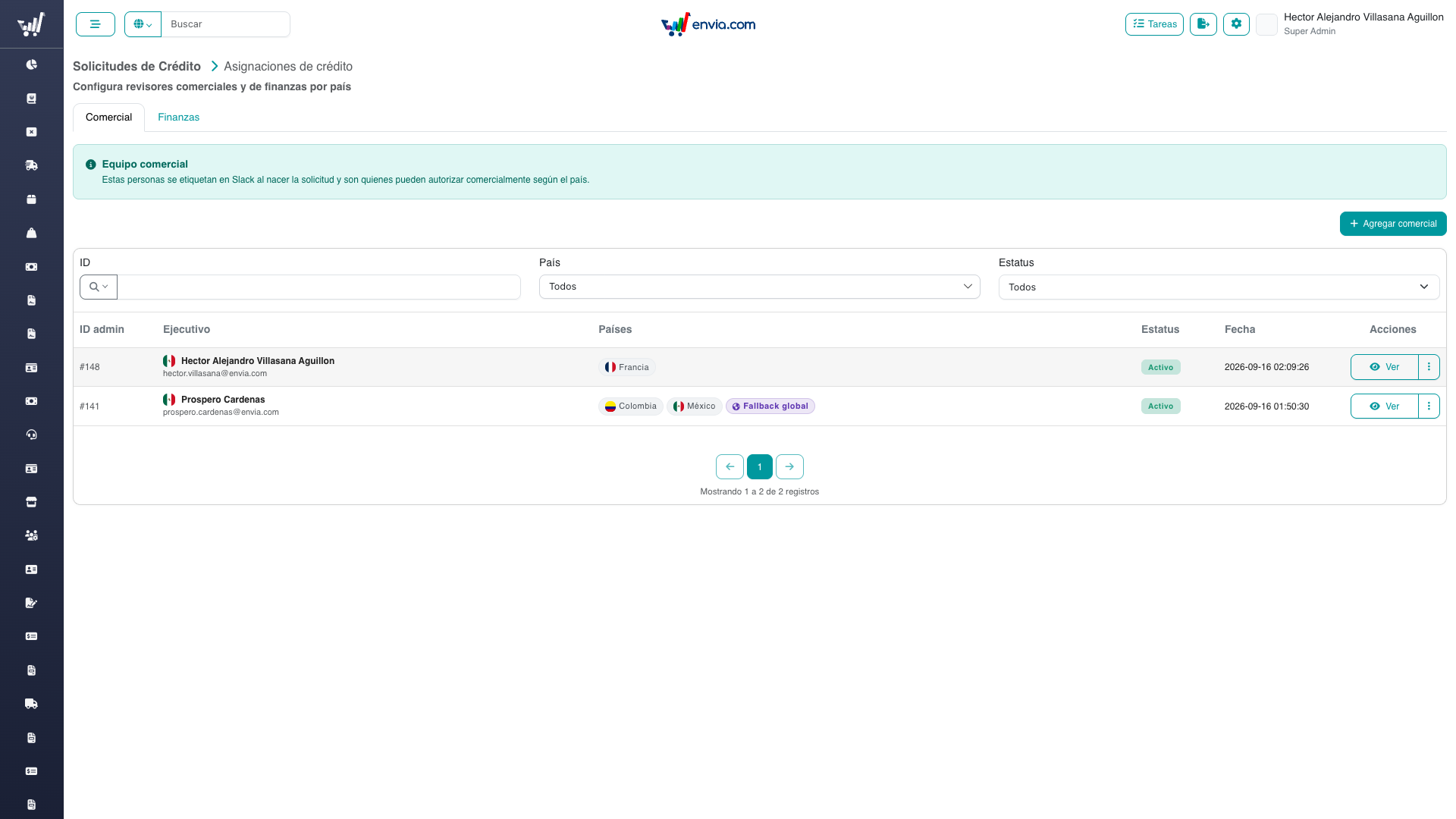
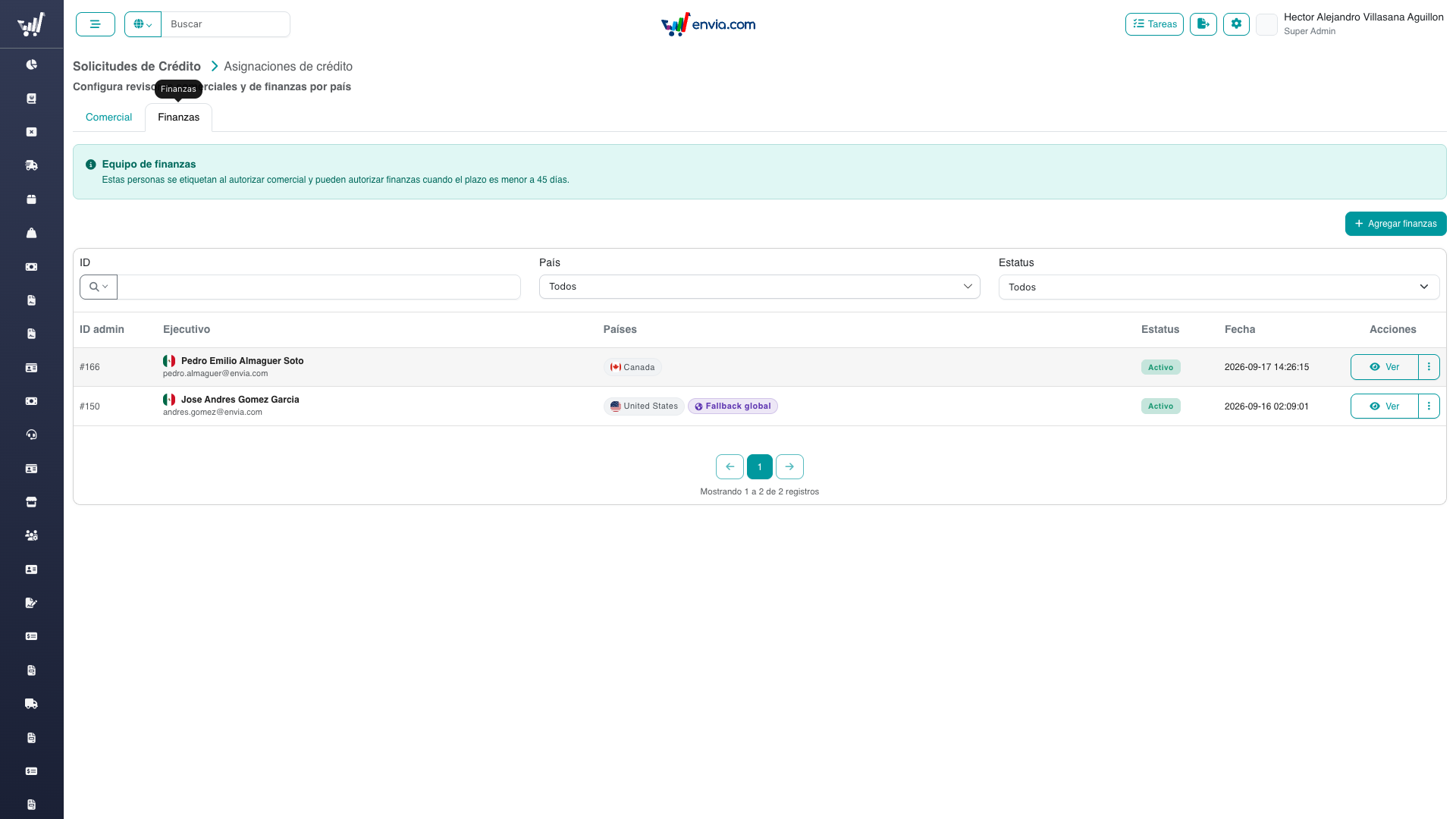
- Click Agregar comercial / Agregar finanzas, pick an active administrator, the operating countries they cover, and optionally the fallback flag.
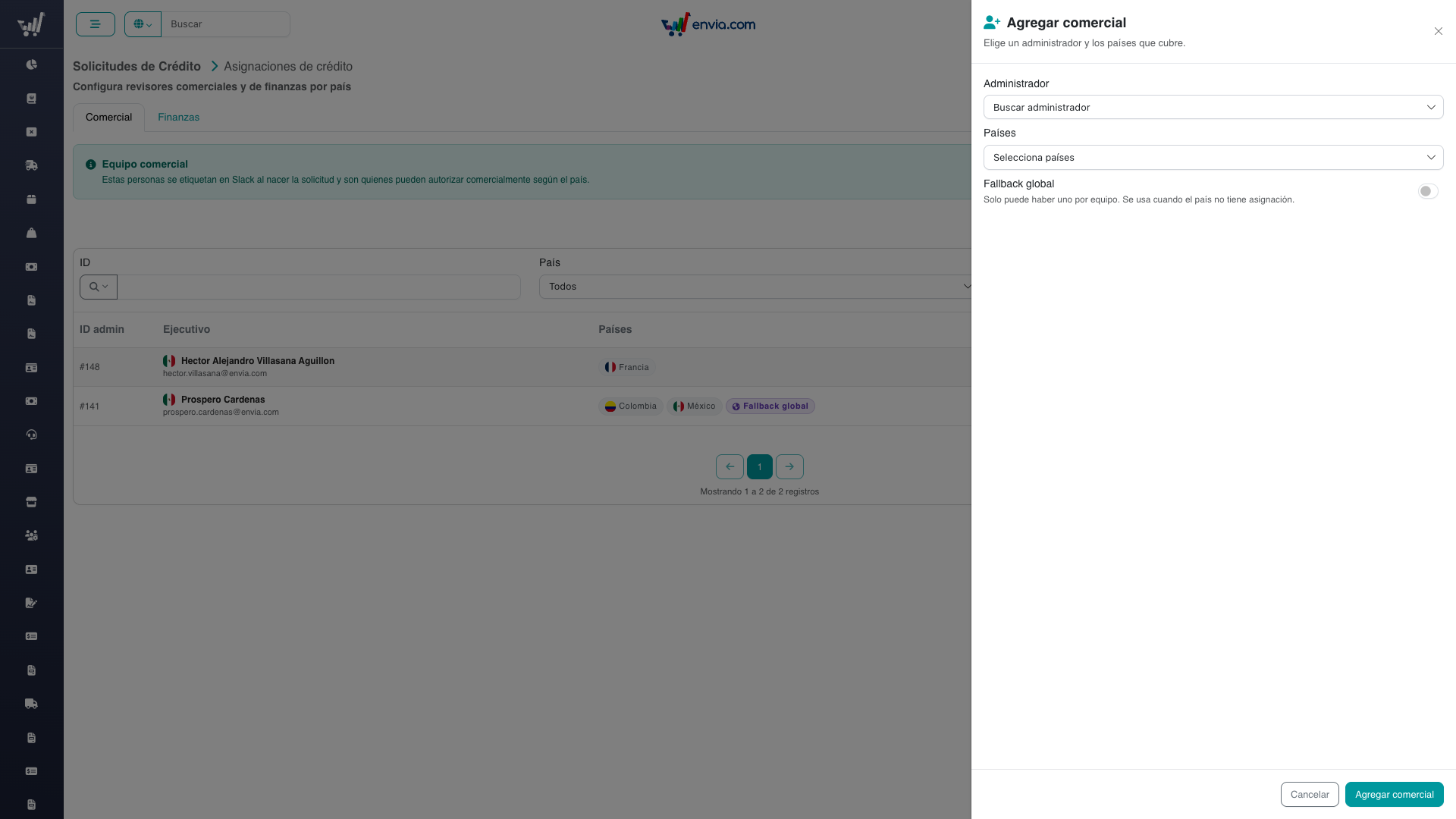
- Save. Overlapping countries are allowed (several people can cover Mexico). A second fallback on the same tab is rejected.
- To deactivate, open Ver and use delete — you must turn off fallback first if that person is the global fallback.
Country lists only include operating locales (locale_operation = 1). Colombia is not in that catalog.
There is no automatic load of the old hardcoded reviewers. After the permission SQL, grant the permission to operator roles and create the rows from the change design.md tables. Do not add the localhost test reviewer as a production row.
Managing DocuSign Contract Configurations
Navigate to Legal → Contratos DocuSign to manage which DocuSign template is used per country, person type, and request type (new credit vs modification).
Adding a New Configuration
- Click Nuevo Contrato
- Fill in:
- Name: a descriptive name (e.g. "Credit Line MX — Business")
- DocuSign Template ID: the Template ID from your DocuSign account (Templates section)
- Country: select the locale
- Person Type:
KYB(business) orKYC(individual) - Request Type:
Nuevo créditoorModificación - Active: toggle on to make it available for contract creation
- Save
WARNING
Only one active configuration is allowed per country + person type + request type combination. You can keep one active new-credit template and one active modification template for the same country and person type. Activating a second one of the same type will fail with a conflict error. Deactivate the existing one first.
Editing a Configuration
Click the edit icon on any row. You can update the Template ID, name, or active status.
Frequently Asked Questions
Why don't I see Country assignments on the listing?
You need manage-credit-line-country-assignments. Super Admin does not get it automatically until the permission is granted to a role (the SQL only inserts the catalog class).
Commercial approve returns forbidden even though I have manage permission.
In production, your login email must match a commercial assignment for that company's country, or the commercial fallback if nobody covers the country. Reject does not use assignments.
Why can't I create a contract even though the request is approved?
Check that:
- All required documents have
approvedstatus (not just uploaded) - An active DocuSign configuration exists for the company's country, person type, and request type (
newfor first-time credit) - No envelope has already been sent (
contract_status = no_contract)
The webhook didn't fire — the contract is signed in DocuSign but status is still sent.
Use the Sync Signed Contract button to manually re-download the signed PDF and update the status.
The client says they didn't receive the DocuSign email.
Check the DocuSign account's envelope history. The platform only creates the envelope — email delivery is handled by DocuSign. Verify the client's email in the ticket.
Why don't I see the note / pagaré step?
The note step only appears for new credit in countries with a configured note form (currently Mexico). It does not appear for modifications — those go from approved documents to Approve (flag on) or Create Contract (flag off). For other countries the flow is the same. Also confirm all required documents are approved — the upload panel only shows in document_review once they are.
I validated the signed note but Approve or Create Contract still doesn't appear.
Check that:
- The request reached
note_validated(the note was approved, not rejected) - No DocuSign envelope already exists (
contract_status = no_contract) - You have the
credit-line-requests-create-docusign-contractpermission - With the management flag on, the button is Approve, not Create Contract
I rejected the signed note by mistake — how does the client fix it?
Rejecting deletes the uploaded copy and returns the request to note_sent. The client simply uploads a new signed copy from their portal, which moves the request back to note_review for validation. No data is lost beyond the rejected file.